
Editor
Editing text and timing
Work with the transcript, subtitle cues, and time boundaries in the editor.
Subtitle text
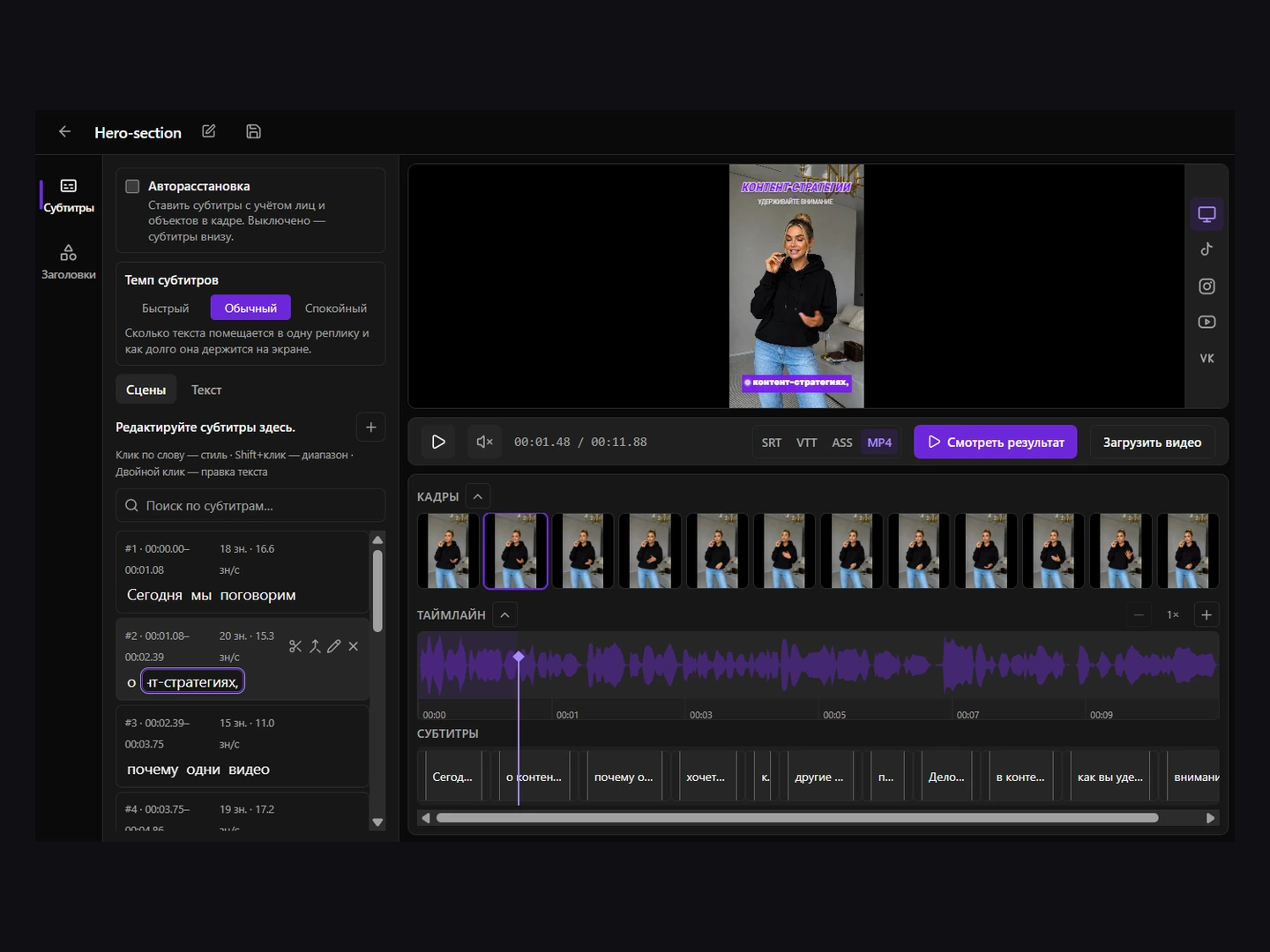
Open Captions → Scenes. Double-click a word to edit its text. A single click selects a word for styling; Shift-click extends the selection to a range. Use the Transcript tab to review the recognized text across the video.
- Preserve the meaning of the original speech.
- Split long phrases into short, meaningful parts.
- Avoid unnecessary punctuation on screen.
- Check line wrapping on narrow vertical videos.
Timing
On the timeline, each cue spans from its start to end time. Adjust the edges so the subtitle follows the speech and remains visible long enough to read.
Review after editing
- Start playback a few seconds before the edited point.
- Check when the text appears and disappears.
- Make sure it stays inside the safe area.
- Watch adjacent cues for abrupt jumps.
Saving changes
Click the disk icon in the top bar or press Ctrl+S (⌘S on Mac). The indicator marks unsaved changes. Wait for saving and subtitle rebuilding to finish; if saving fails, retry before closing the page.