
Getting started
Quick start
Create your first AI subtitles: upload a video, review the transcript, adjust the style, and export the result.
1. Open the editor
Open the Captions Space editor. Sign in or create an account if prompted.
2. Upload a file
- Drop a video onto the upload area or click it to select a file.
- Keep the tab open until the upload finishes.
- Processing starts automatically after the upload.
3. Wait for processing
Captions Space transcribes the speech, aligns individual words, analyzes the frames, and prepares the initial subtitle design. The current stage is shown in the editor.
- Do not upload the same file again while processing is in progress.
- Processing time depends on video length and current service load.
4. Review the subtitles
Watch the video from beginning to end. Correct names, numbers, terminology, and speech obscured by background audio. Adjust cue text and timing where necessary.
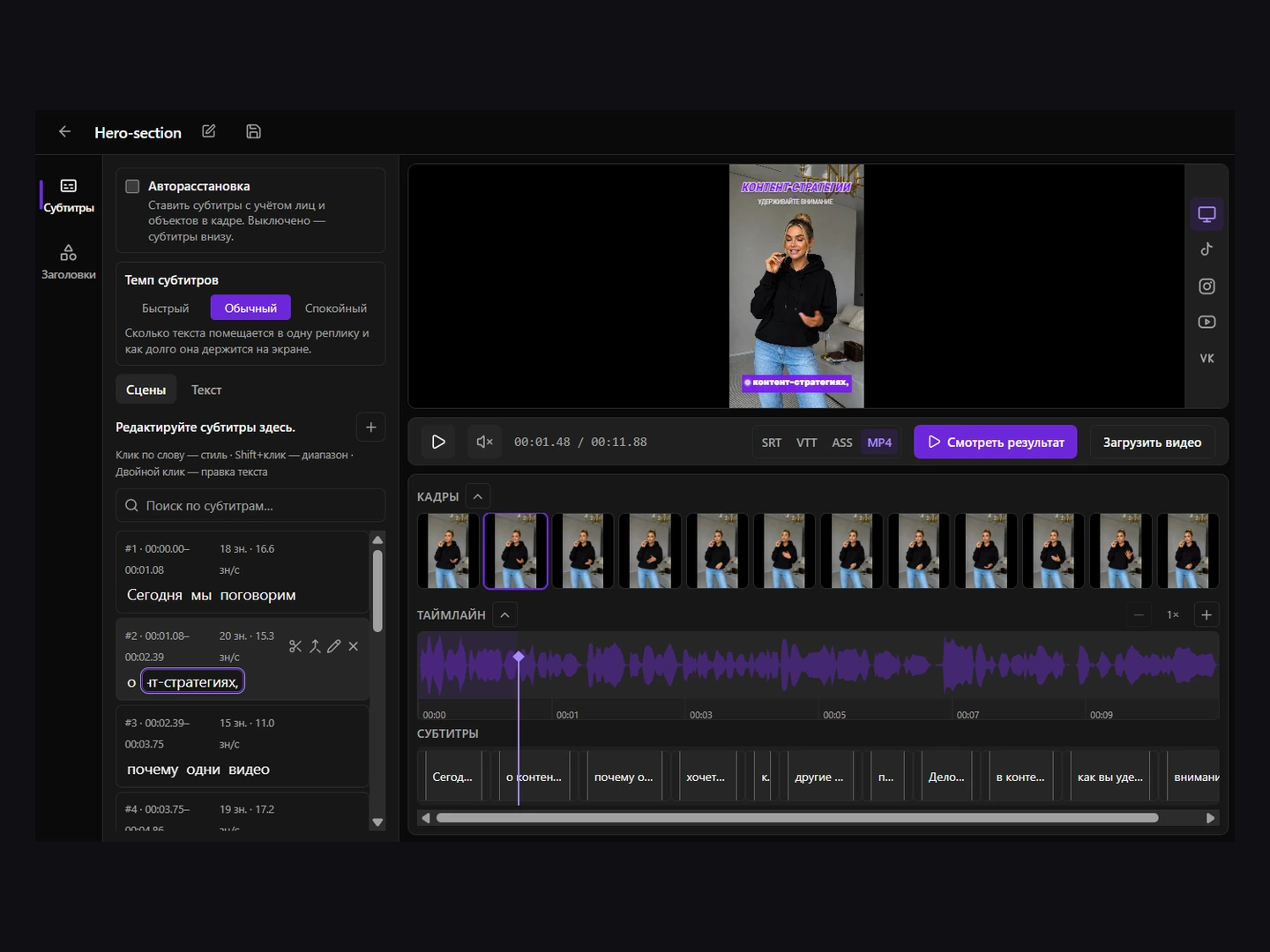
5. Adjust the design
Choose a preset or configure the font, colors, outline, background, position, and animation. Check readability on both light and dark scenes.
6. Save changes
Click the disk icon in the top bar or press Ctrl+S (⌘S on Mac). The indicator marks unsaved changes. Wait for saving and subtitle rebuilding to finish; if saving fails, retry before closing the page.
7. Export
Choose MP4, MOV, H.265 or WebM for a finished video, or SRT, VTT or ASS for a separate subtitle track. Wait for preparation and click Download. Keep the tab open until you download a browser-generated MP4.