
Editor
Editor interface overview
Learn the main areas of the workspace on desktop, tablet, and mobile devices.
Workspace
A processed project opens in a full-screen workspace. The video is in the center, subtitle tools are on the left, export and styling controls are on the right, and the frame strip and timeline appear below the preview.
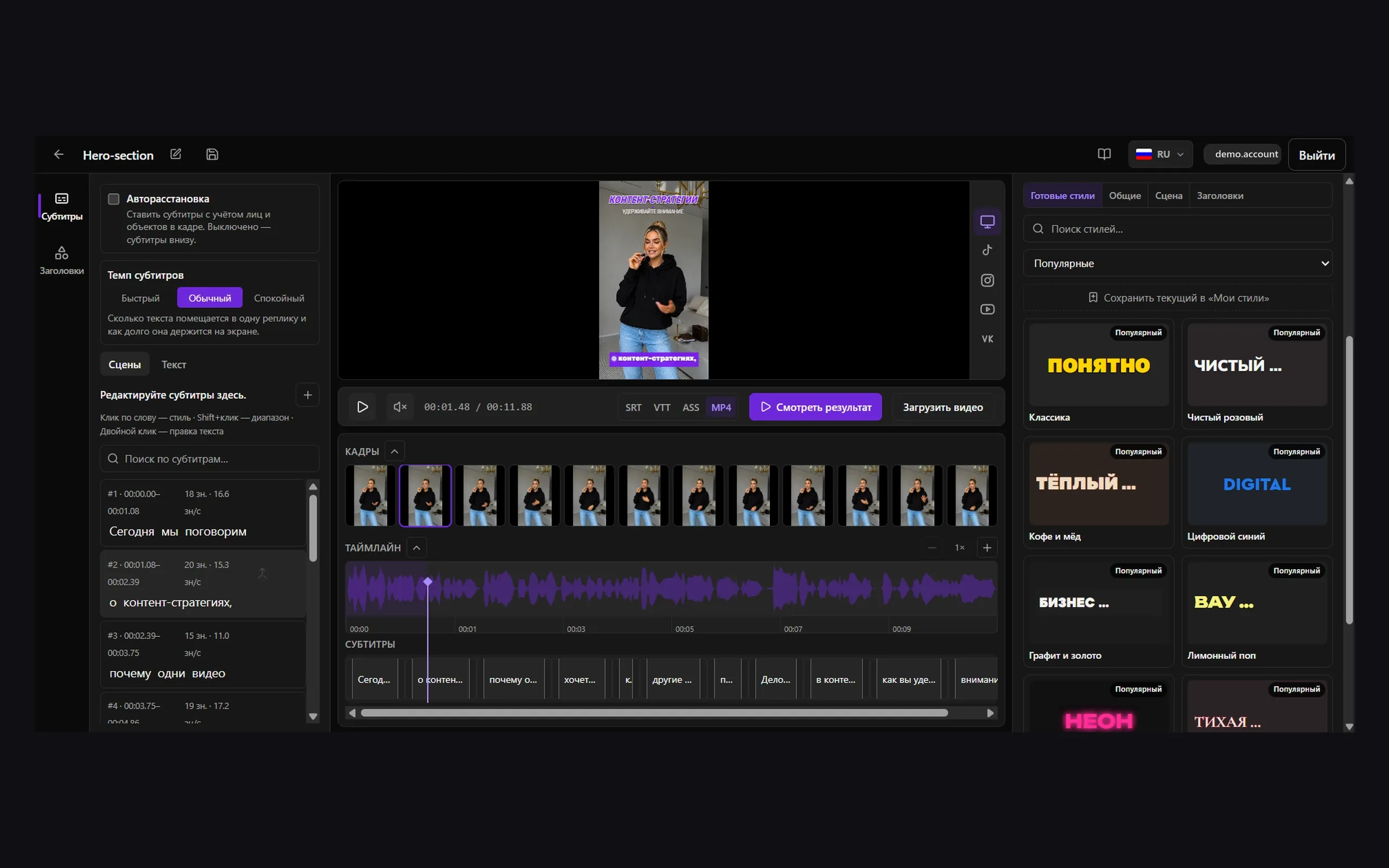
Top bar
- Project name and rename control.
- Disk icon — save pending edits and rebuild subtitles (Ctrl+S / ⌘S).
- Original file name.
- Documentation button.
- Interface language switcher.
- Account menu.
Left panel
Captions contains Scenes and Transcript tabs, auto-placement and subtitle pace controls. Headlines opens cards for headline blocks: edit their text, change a line’s role or hide a block.
Center area
- Processing progress.
- Video preview with subtitles.
- Playback and sound controls.
- Frame strip.
- Audio waveform and subtitle track.
Right panel
The right panel contains export and Ready-made styles, General, Scene and Headlines tabs. Scene includes selected-cue settings, entrance animation, B-roll and zooms. Apply pending edits with the shared Save button.
Tablet and mobile
On tablets, side panels open over the workspace. On phones, use the bottom Captions, Style, and Timeline tabs to move between tools.