
Editor
Auto-placement and subtitle pace
Place captions with frame content in mind and choose how quickly cues change.
Auto-placement
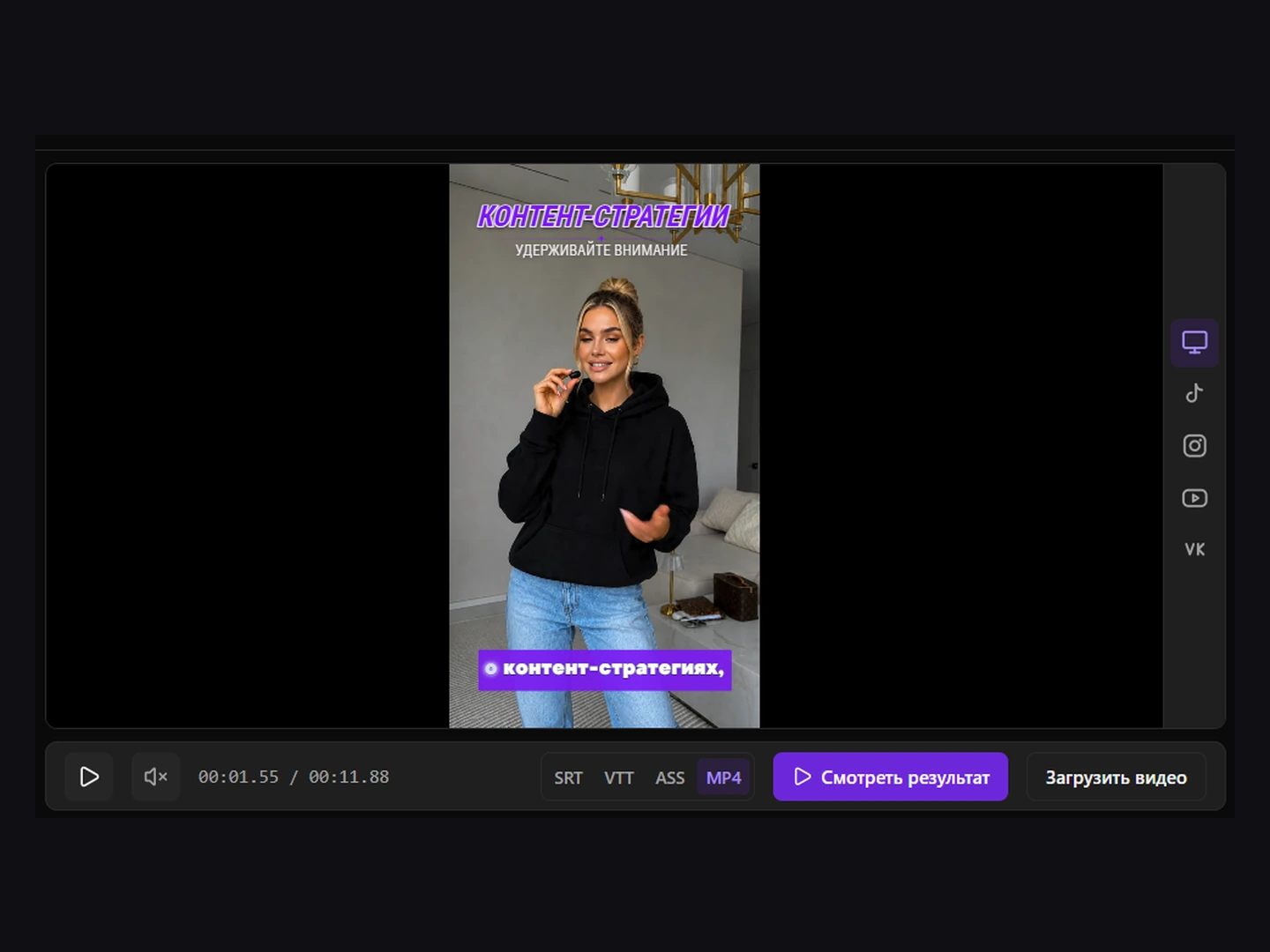
In a processed project, open Captions and enable Auto-placement. With it off, captions sit at the bottom center. With it on, placement takes detected faces and objects into account. Save and check the placement across scenes.
Review placement
Automatic placement is a starting point: check that text does not cover important details. In supported scenes, drag the caption in the preview to set its position manually, then save.
Subtitle pace
Choose Fast, Normal or Calm in the left panel. This controls the amount of text per cue and how long it stays visible, not the video’s playback speed. Save, wait for rebuilding and review the new cue boundaries.
Saving changes
Edits save on their own a couple of seconds after your last change, and subtitles rebuild in the background — you can keep editing. The status in the top bar reads “Saving…” or “All changes saved”. If it says “Not saved”, click it to retry; Ctrl+S (⌘S on Mac) saves right away without waiting for the pause.