
Editor
Using the timeline
Navigate the video, read the waveform, zoom the timeline, and adjust cue boundaries precisely.
Timeline anatomy
- The waveform helps locate speech and pauses.
- The ruler shows video time.
- The subtitle track contains cue blocks.
- A vertical playhead shows the current position.
- An additional track may show effects and inserted media.
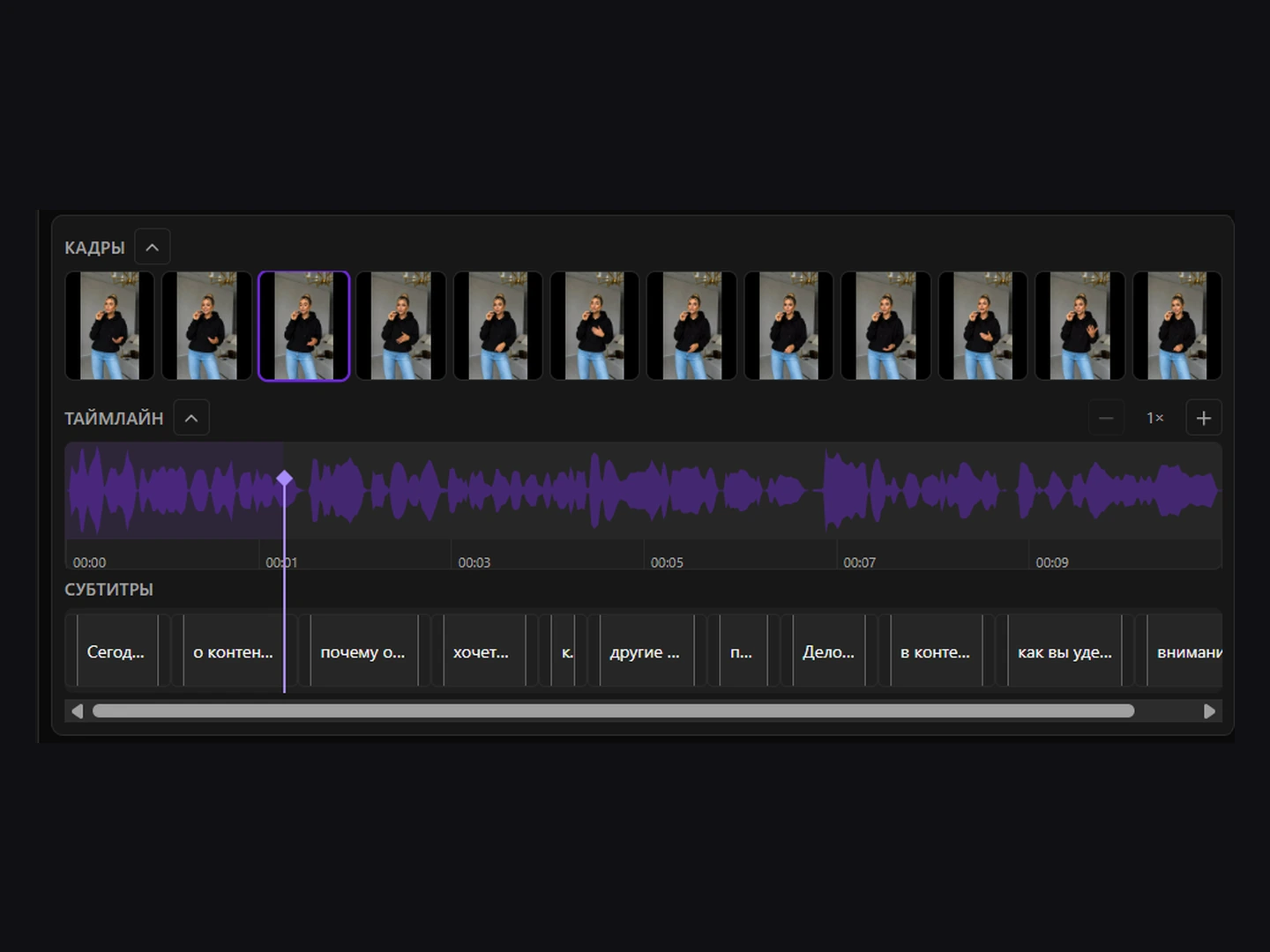
Navigate the video
Click the waveform, ruler, or empty track space to seek. Drag across the waveform for quick scrubbing.
Select a cue
Click a cue block to select it and seek to its start. The related panels update to show the selected text.
Adjust boundaries
- Select a cue.
- Drag its left edge to change the start or its right edge to change the end.
- Move the edge to the desired point on the waveform.
- Release it and play the section.
Zoom
Use − and + to zoom from 1× to 8×. Scroll horizontally when zoomed in. Higher zoom is useful for short cues and precise synchronization.
Reading speed and overlaps
The selected cue shows characters per second. Values above 20 are highlighted as a warning. Overlapping blocks appear in amber; adjust them unless simultaneous display is intentional.
Audio track
Collapse the waveform to save room on a small screen and expand it when you need accurate audio alignment.